User Guide
Account Setup
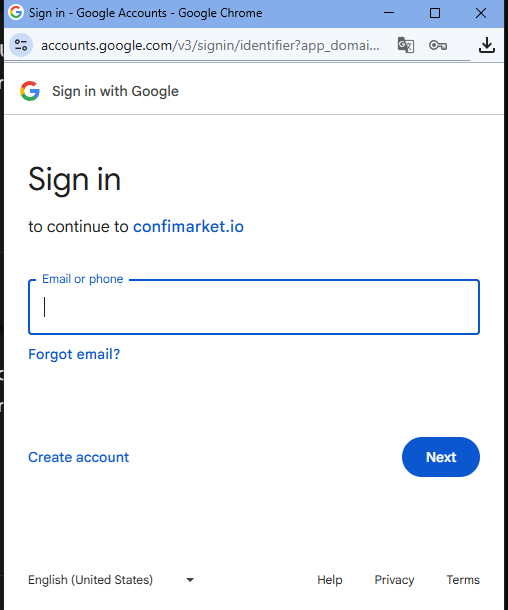
1. Login to Your Account
First step: Log in to your account.

2. Fill Your Data
Second - fill your data.
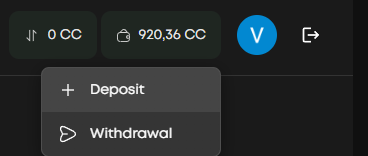
3. Top Up Your Wallet
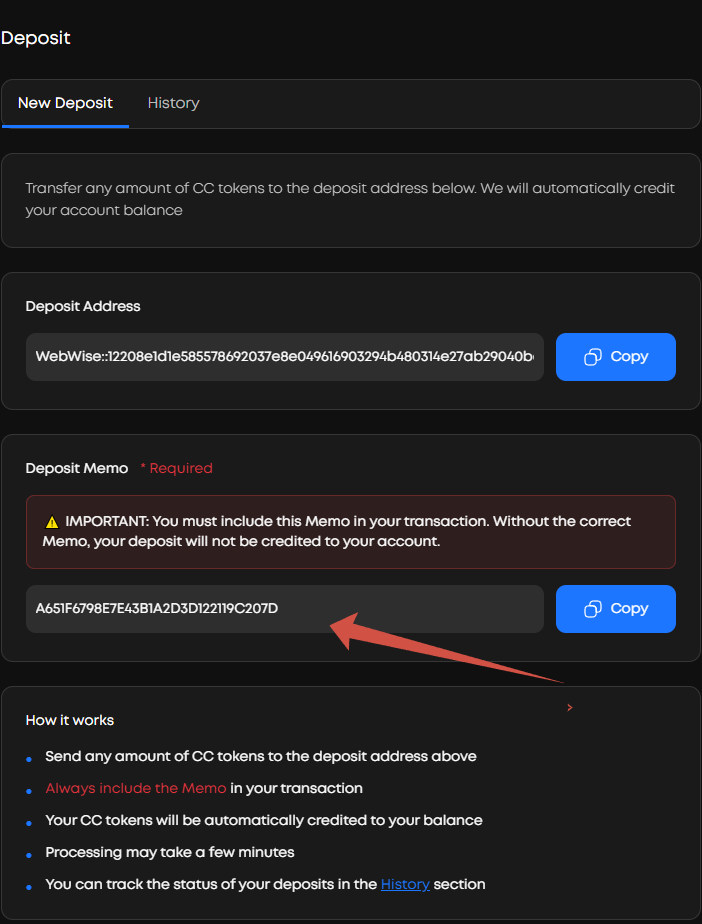
Next, select top up your wallet if you don't have CC yet.

Caution
Important! When depositing funds, make sure you've copied the deposit address from your WebWise Party ID and entered the MEMO correctly. Caution: If you don't enter the MEMO, your deposit will be lost!
Trading
4. Select Market and Place Bet
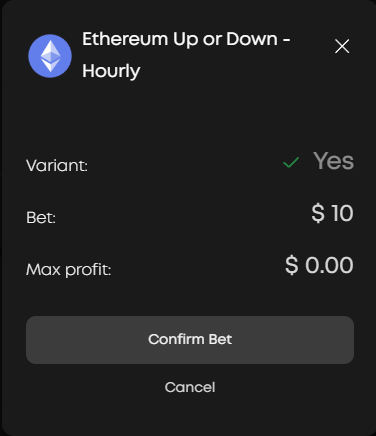
Then select the Crypto market and use the slider to select the required number of CCs to bet.
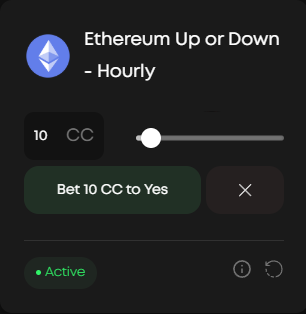
Confirm your bid.
Dashboard & Monitoring
5. View Markets and Results
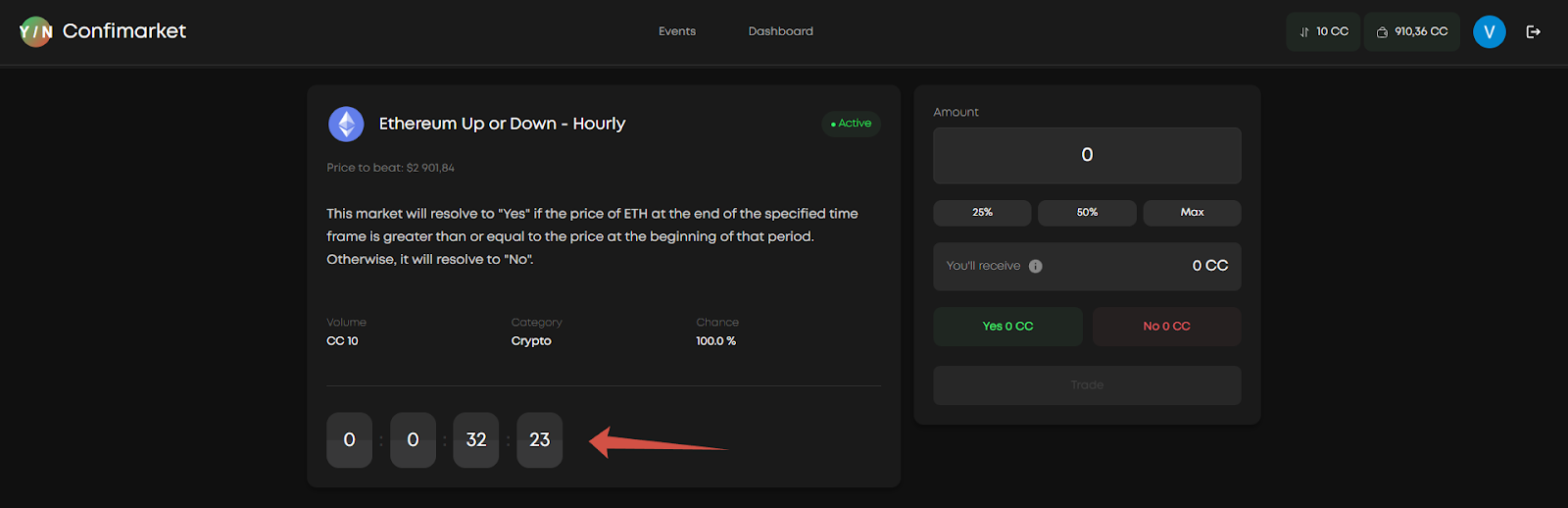
To see the rate information, go to the dashboard tab.
You can see current and closed markets in this section.

By clicking on a specific position, you can see all the market data, as well as its resolution time.

Based on the market results, you will see the outcome in the dashboard.
Withdrawals
6. Withdraw Funds
When withdrawing funds, you need to specify the withdrawal address, without the need to enter a MEMO.
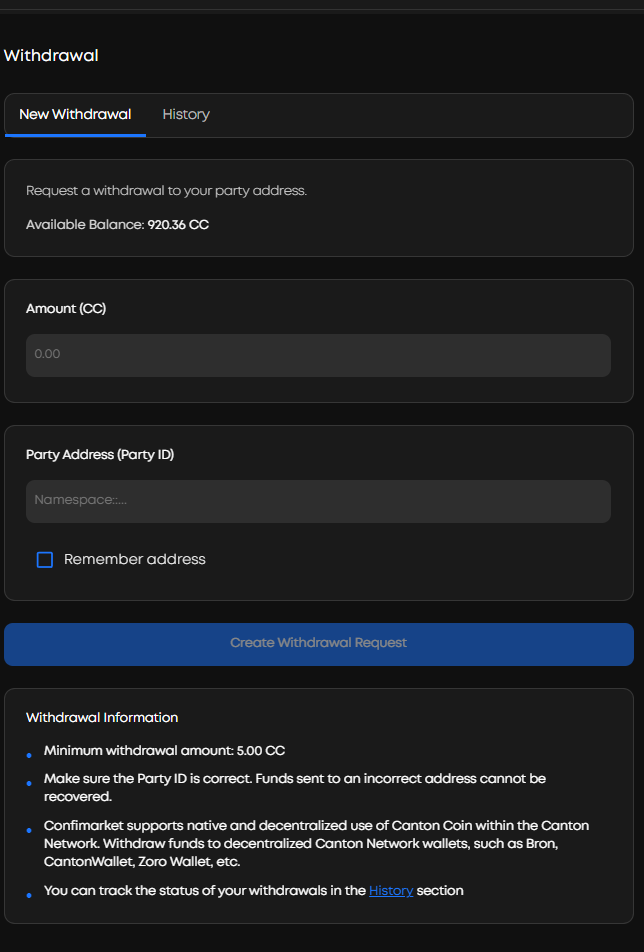
You can also save the address so you don't have to enter it next time.